Welcome to Audiobook Theater, a modern, local-first Android audiobook player designed to give you complete freedom, privacy, and control over your audio collection. Whether you are listening to DRM-free audiobooks, reading along with companion e-books, or syncing with your self-hosted media servers, Audiobook Theater brings your library to life.
1. First Launch & Initial Setup
When launching Audiobook Theater for the first time, you will be guided through a lightweight onboarding process designed to set up your privacy preferences and connect your media files.
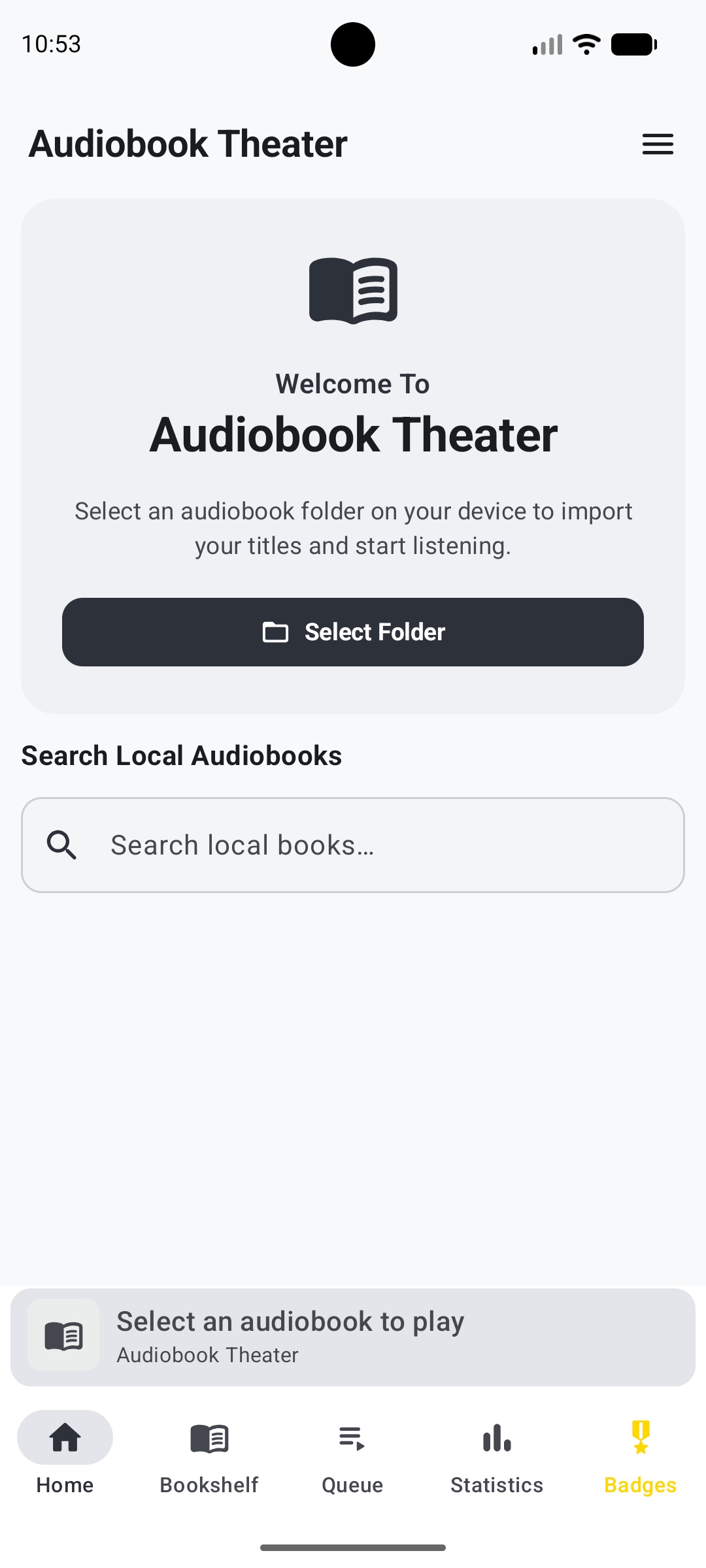
Choosing Your Privacy Options
Audiobook Theater is designed with a strict local-first privacy architecture. Your audiobook files and app data are stored locally for normal local use. Optional backups and self-hosted server integrations have separate data flows: backups may include app metadata, and connected servers may receive progress updates. See the app privacy policy for details.
On first launch—or anytime under Settings ⚙️ -> Privacy & Legal -> Reporting & Analytics—you will be presented with our Privacy & App Improvement Consent Prompt (🛡️ Security):
- Local-first by design: Optional reporting is intended to exclude audiobook content, filenames, titles, authors, narrators, bookmarks, personal reviews, and server URLs.
- Optional diagnostics and analytics (Opt-In):
- Crash Reporting: Sends technical crash reports to help fix bugs. Reports may include app-installation identifiers; they are not necessarily anonymous aggregate records.
- Features Analytics: Tracks general screen views and button clicks to refine navigation.
- Performance Metrics: Monitors app startup latency and frame rates to eliminate scrolling jank.
Note Reporting is optional. You can enable or disable it in the app. Optional analytics and crash reporting may process technical information and app-installation identifiers to measure usage and diagnose problems. These identifiers do not directly tell us your name or email address. Information voluntarily sent to support is handled separately, and you may request deletion of that correspondence and associated personal information. See the app privacy policy for current data-handling details.
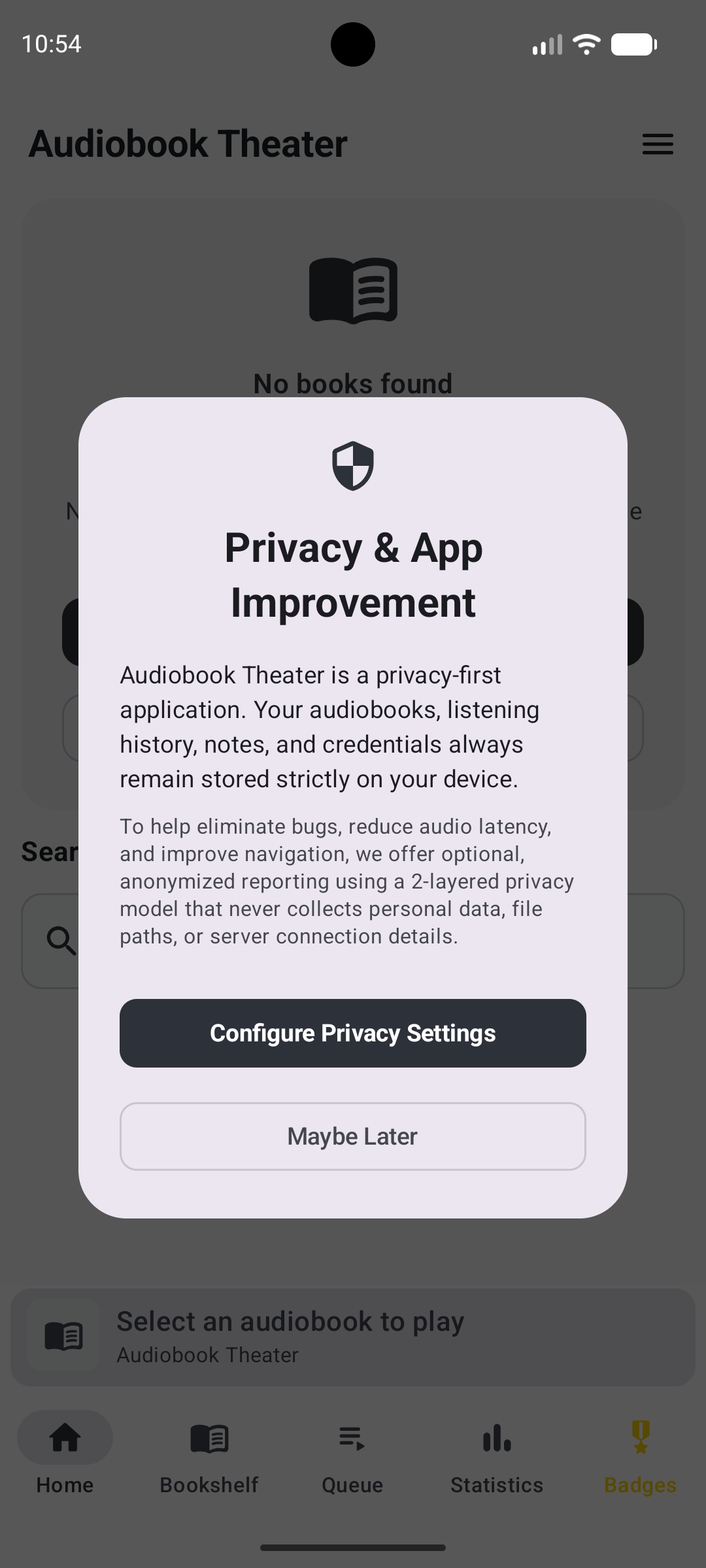
Note Screenshot wording: This screenshot shows an earlier in-app notice. Its references to “anonymized” reporting and data “always” remaining on-device should be read alongside the updated explanation above and the current privacy policy. The screenshot is retained to help you recognize the screen.
Selecting Your Library Root Folder
To begin importing your audiobooks:
- Tap Select Folder (📁) on the initial welcome screen or top bar.
- Android's system file picker will open. Choose the primary directory on your device or SD card where your audiobook folders are stored.
- Tap Use This Folder and grant storage access.
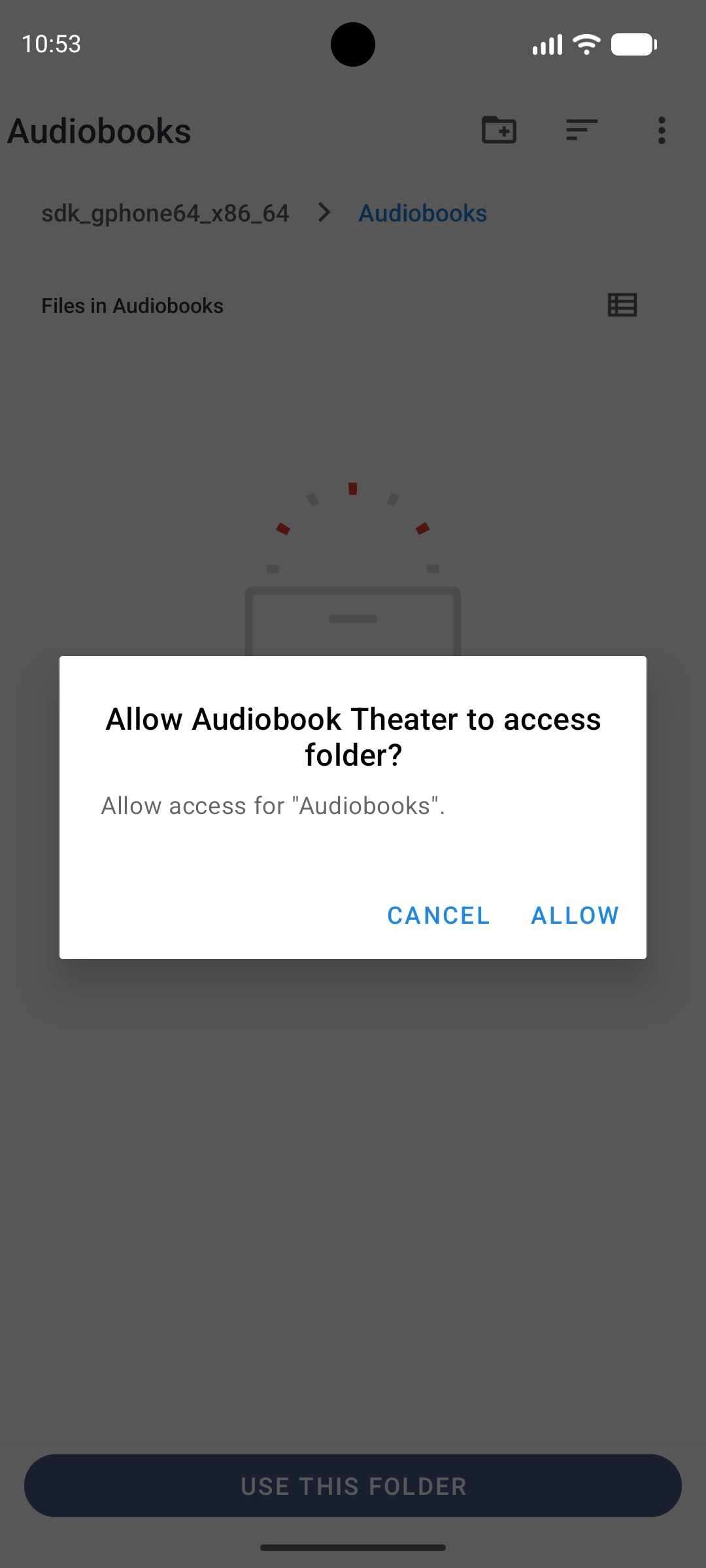
Audiobook Theater will automatically scan for supported audio formats (.m4b, .mp3, .m4a, .aac, .flac, .opus) and companion e-book formats (.epub, .pdf, .txt).
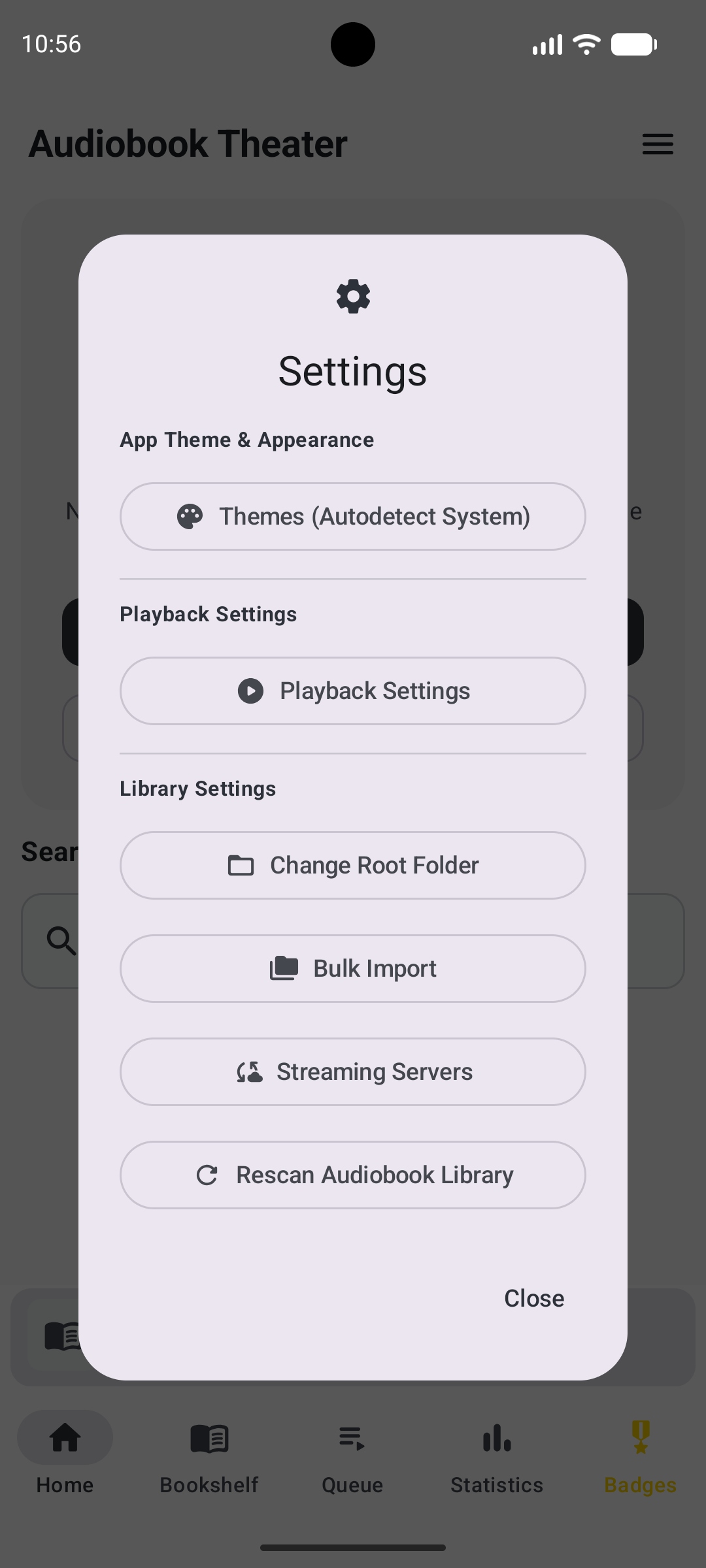
If you ever move your library or switch storage locations, tap Change Root Folder (📁) under Settings ⚙️ -> Library Settings. Audiobook Theater will seamlessly update file paths while preserving all your bookmarks, listening logs, and statistics.
2. Listening to Your First Audiobook
Home Screen Overview (🏠 Home)
The Home Screen (🏠) is your central command center:
- Continue Listening Hero Card: Located at the top, displaying your active audiobook with cover art, progress bar, percentage completed, remaining duration, and a prominent Resume Playing (▶️) button.
- In Progress Row: Displays up to two other audiobooks you are currently listening to, enabling one-tap switching between titles.
- Recently Added: Displays newly imported titles. Active local audiobooks appear automatically.
- Search Bar (🔍): Search across your local library by Title, Author, Series, or Narrator in real time.
- Top Bar Controls:
- Select Folder / Change Directory (📁): Quick access to your root audiobook folder.
- Top-Right Main Menu (≡): Access Customize Home Screen, Settings (⚙️), and Help & Guide (❓).
The Now Playing Player Screen
Tapping any audiobook opens the full-screen player:
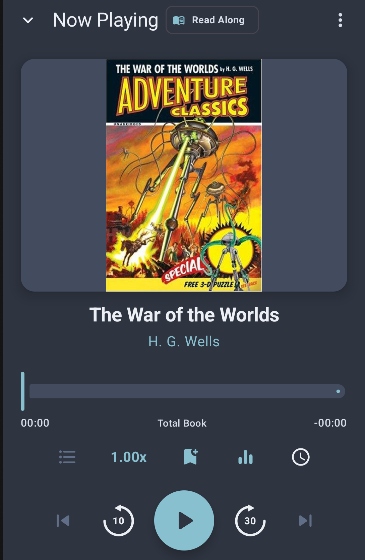
Core Playback Controls
- Play / Pause (▶️ / ⏸️): Start or pause audio playback.
- Skip Back 10s (↩️) & Skip Forward 30s (↪️): Instant jump buttons. Skip durations can be customized in
Settings ⚙️ -> Playback Settings. - Previous / Next Chapter (⏮️ / ⏭️): Navigate between audiobook chapters.
- Playback Speed (0.5x – 3.0x): Tap the speed button to choose preset speeds or fine-tune speed in 0.05x increments. Enable Remember Speed Per-Book in settings to maintain custom speeds for individual titles.
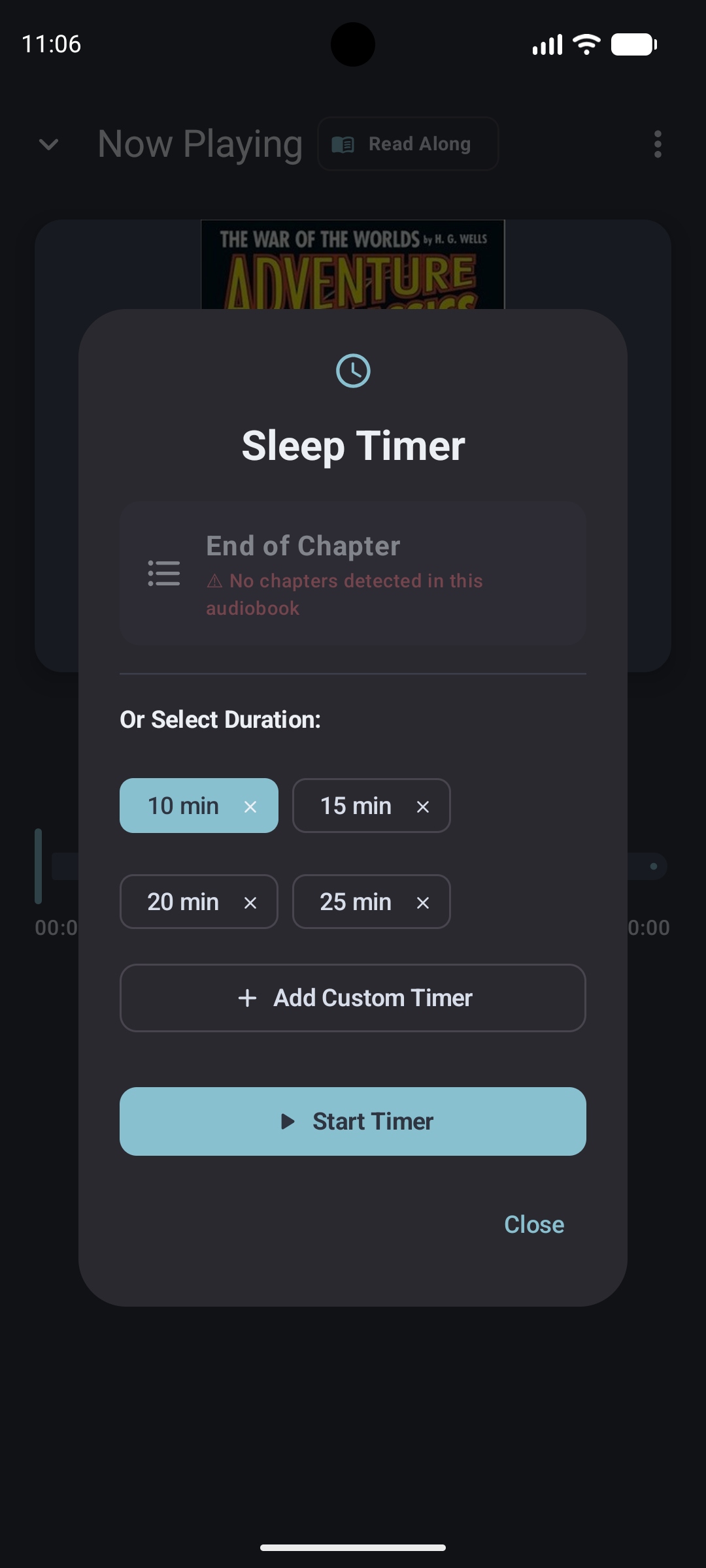
- Sleep Timer (⏱️): Choose a duration preset, add a custom timer, or select End of Chapter when chapter information is available. The screenshot shows editable presets; your configured durations may differ. Features an optional Fade Audio Near Timer End setting to gradually reduce volume during the final 60 seconds.
Scrubber PushPin Markers (📌) & Return to Progress (↩️)
- Scrubber PushPins (📌): Any saved bookmark is automatically pinned directly onto the playback timeline. Tapping a pin instantly jumps to that exact moment.
- Return to Progress Quick-Hop (↩️): When you jump back to review an earlier chapter or bookmark, a floating Return to Progress (↩️) chip appears. Tapping it instantly hops you back to your furthest point of progress!
- Sleep Marker Jump-Back: When a sleep timer pauses playback, a Sleep Marker chip appears on the scrubber, allowing you to jump back to where the timer started if you fell asleep.
Companion E-Books & Read Along Mode (📖 Read Along)
If an e-book (.epub, .pdf, .txt) is present in the audiobook folder:
- Tap Read Along (📖) on the player toolbar to open the hands-free e-book reader view.
- Audio playback remains synchronized with auto-scrolling text calculated using chapter timestamps, progress percentages, and text indexing.
- Manual Re-alignment: If narration pacing or e-book formatting causes the text position to drift slightly, simply manually scroll the e-book to your exact location and tap Resume Following (or Align AI to Current View) to re-align auto-scrolling.
- Customize reader appearance (Font Size
sp, Font Family, Auto-Scroll Speed 🐢/🐇, and sentence highlighting style) using the Reader Appearance Settings icon.
3. Experimental On-Device Local AI Features
Audiobook Theater includes local, on-device AI capabilities powered by ML Kit and AICore. All AI processing executes 100% locally on your device without transmitting audio or text to cloud servers.
Warning Experimental Feature Notice: All AI features are highly experimental and may not perform as expected. Response quality, processing speed, and feature availability depend directly on your device's hardware processor and available memory. Core audiobook playback works on older devices (tested back to Samsung Note 8), but local AI features require modern device AI hardware support.
- 01Enable AI in SettingsLocal AI Features → Configure AI Features
- 02Set up the on-device modelFollow the availability and download prompts for your device.
- 03Choose features in the playerOpen the AI Assistants hub for per-session controls.
Enabling AI Features (Settings & Player Hub)
Step 1: Master Enable in Settings
- Go to
Settings (⚙️) -> Local AI Features -> Configure AI Features. - Toggle Enable AI Features to ON.
Step 2: One-Time On-Device Model Setup
- If your device supports local AI, the setting screen will display On-Device AI Model Setup.
- Tap Download On-Device AI Model (~40–80 MB). This model is downloaded once over Wi-Fi/Cellular and stored locally on your device.
Step 3: Per-Book Activation on Player Screen
- Open the Now Playing screen for any audiobook.
- Tap the AI Assistants icon (✨) on the top action bar.
- Toggle individual AI sub-features on or off for your current listening session.
AI Sub-Feature Breakdown
| Feature | Icon / Location | Description & Requirements |
|---|---|---|
| What Did I Miss? | ✨ Player AI Hub | Generates instant, bulleted session recaps covering the last 5 to 30 minutes of listening history. Perfect when life distracts you while listening. |
| AI Read Along | ✨ Player AI Hub | Synchronizes live audio with attached companion e-books, featuring auto-centered viewport scrolling and live sentence highlighting. |
| AI Transcribe | ✨ Player AI Hub | Generates live, on-device subtitles on screen when no companion e-book is available. Works best at 1.0x playback speed. |
| Character Assist | ✨ Player AI Hub | Displays a playback-synchronized overlay identifying current speakers, viewpoint (POV) characters, and active scene members without spoilers. ⚠️ Requirement: Requires a companion e-book (.epub / .txt) in the audiobook's folder. |
Transcript Storage & Deletion
- Local Persistence: Generated transcripts and session logs are saved locally on your device database so you can review past session summaries without re-processing audio.
- How to Delete Transcripts:
- Open
Settings (⚙️) -> Local AI Features -> Configure AI Features. - Scroll to the bottom and tap Delete All AI Transcripts (🗑️).
- Confirm deletion in the prompt. All stored AI audio transcripts will be permanently cleared (your bookmarks, listening statistics, star ratings, and personal reviews remain untouched).
- Open
4. Managing Your Library
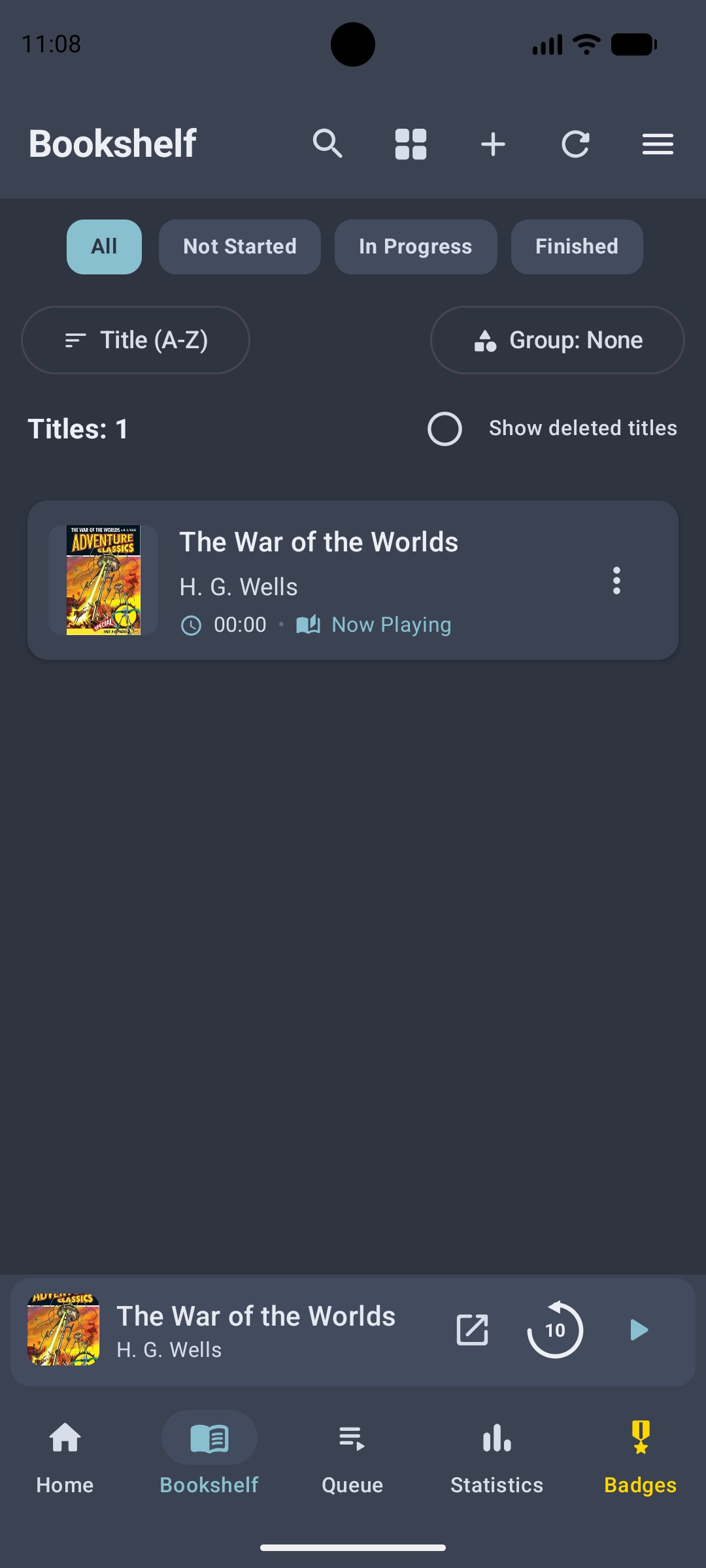
Access your full library by tapping Bookshelf (📚 Bookshelf) on the bottom navigation bar.
Filtering, Sorting & View Modes
- Category Filter Tabs: Filter your collection by All, Not Started, In Progress, or Finished.
- Sorting Options: Sort by Title (A-Z / Z-A), Author, Series Order, Date Added, or Duration (Shortest / Longest).
- Group By: Group books by Author or Series.
- Grid vs. List View Toggle: Switch between compact list view and rich visual cover art grid view.
Importing DRM-Free Audiobooks & Smart Organization
Audiobook Theater supports importing your DRM-free audiobook files (.m4b, .mp3, .m4a).
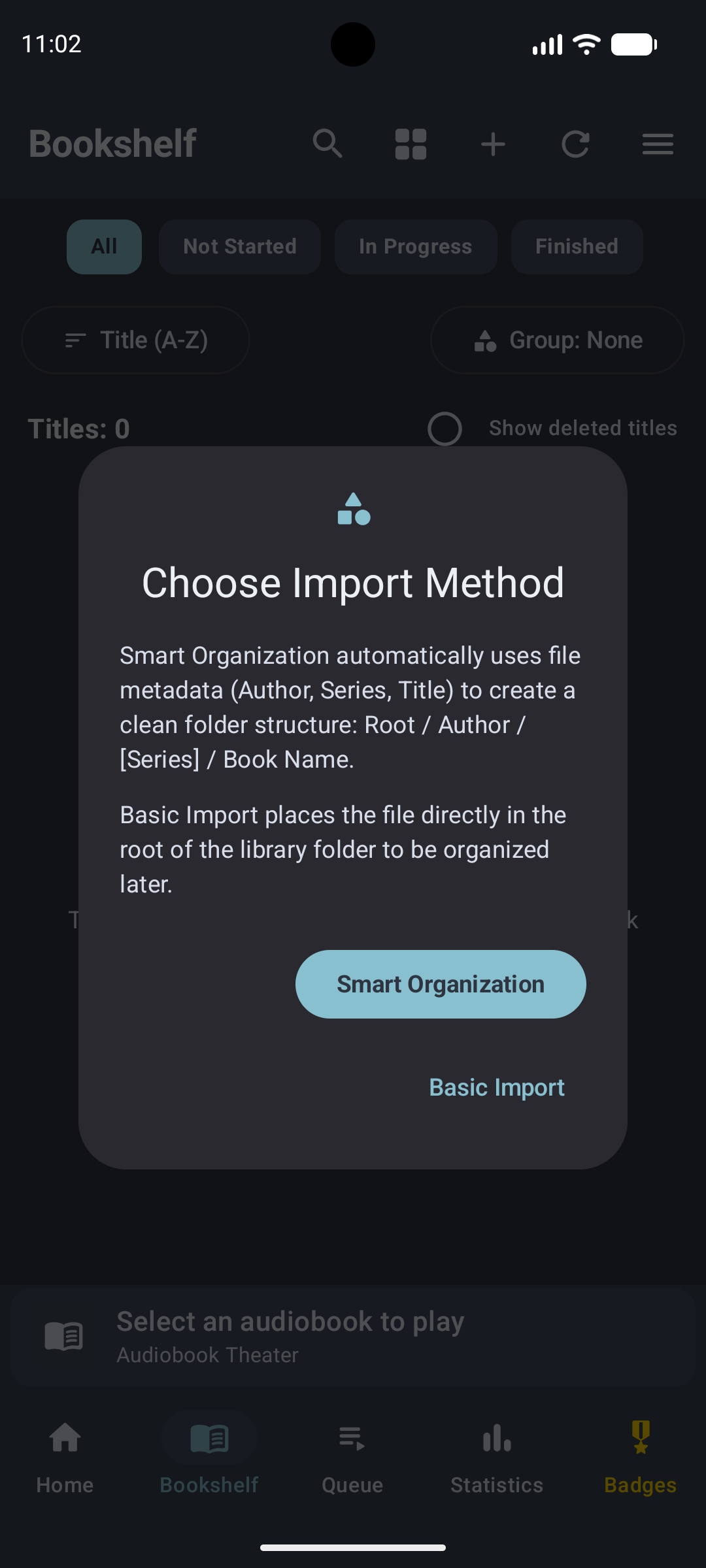
Tap Import Audiobook (+) or Bookshelf Menu (⋮) -> Bulk Import:
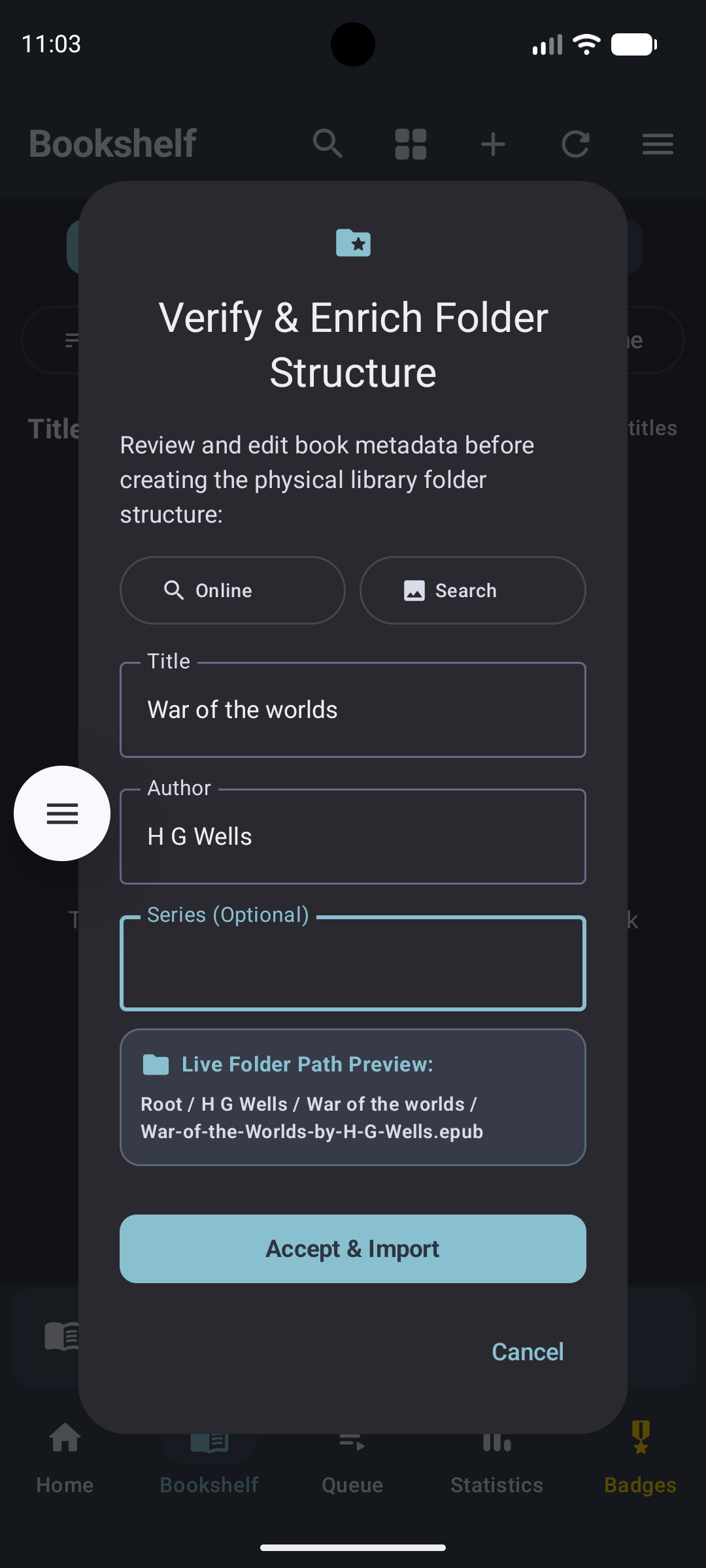
- Smart Organization: Automatically reads file ID3 tags (Author, Series, Title) to create a clean physical folder structure on storage:
Root / Author / [Series] / Book Title. - Basic Import: Copies or moves audiobooks directly into your root folder.
Caution Bulk Import Folder Selection Warning: Bulk Import recursively scans the entire chosen directory tree for all supported audio files (
.m4b,.mp3,.m4a) and e-books. Selecting a general/common system directory such as your device's "Downloads" folder or root storage directory may identify and import random audio files, podcasts, or music that you did not intend to add to your library. Bulk Import is intended to target a dedicated root folder containing a structured collection of audiobooks (e.g., a dedicated/Audiobooksfolder) to import them cleanly into Audiobook Theater's library.
Warning Google Drive & Cloud SAF Warning: While Android's Storage Access Framework (SAF) permits selecting files directly from Google Drive or cloud locations, streaming and importing large audiobook files over cloud SAF is extremely slow and prone to network timeouts. We strongly encourage users to download audiobooks to a local folder on their device first before importing them into Audiobook Theater.
Organizing Local Books on Storage
The Organize Local Books feature (accessed via Bookshelf Menu (⋮) -> Organize Local Books) operates directly on the files residing inside your root Audiobook Theater (ABT) library folder.
This feature is ideal when:
- You have manually copied or basic-imported multiple audiobooks or companion e-books directly into the root level of your library folder.
- You want to clean up your storage and automatically restructure files on disk into standardized subfolders:
Root ABT Directory / Author / [Series] / Book Title.
Important Verify Metadata Before Organizing: The Organize Local Books tool relies on your in-app database metadata (Author, Series, Title) to physically create subfolders and move files on disk. Users MUST verify that book metadata in the app is accurate and complete BEFORE running this feature, as files will be physically restructured based on those active database fields!
Streaming Servers (Audiobookshelf & Jellyfin) & Offline Downloading
In testingAudiobookshelf and Jellyfin integrations remain in testing. The instructions below describe the beta workflow; availability and behavior may change between builds.
Connect your self-hosted media servers via Settings ⚙️ -> Library Settings -> Streaming Servers:
- Audiobookshelf: Connect via Server URL and API Key or Username/Password. Syncs audiobook libraries and progress.
- Jellyfin: Connect via Server URL and Credentials, or tap Detect Local Servers (UDP) for automatic home network discovery.
- Offline Download Feature: For any title hosted on an Audiobookshelf or Jellyfin server, tap the title's More Options (⋮) menu on the Bookshelf and select Download Title. The audiobook will be downloaded directly to your local device storage, allowing 100% offline playback anywhere!
Book Details, Ratings, Personal Reviews & Metadata Editing
Tapping any book entry opens the Book Details page:
- Metadata Overview: View Title, Author, Series, Book Number, Narrator, Genre, Duration, Release Year, and Summary.
- Ratings & Personal Notes:
- Rate titles from 0.5 to 5.0 stars in half-star increments.
- Write or dictating personal thoughts in the 3,000-character review text field.
- Review notes are saved locally and backed up safely.
- Companion E-Book Attachment: Tap Add Companion E-Book to attach an
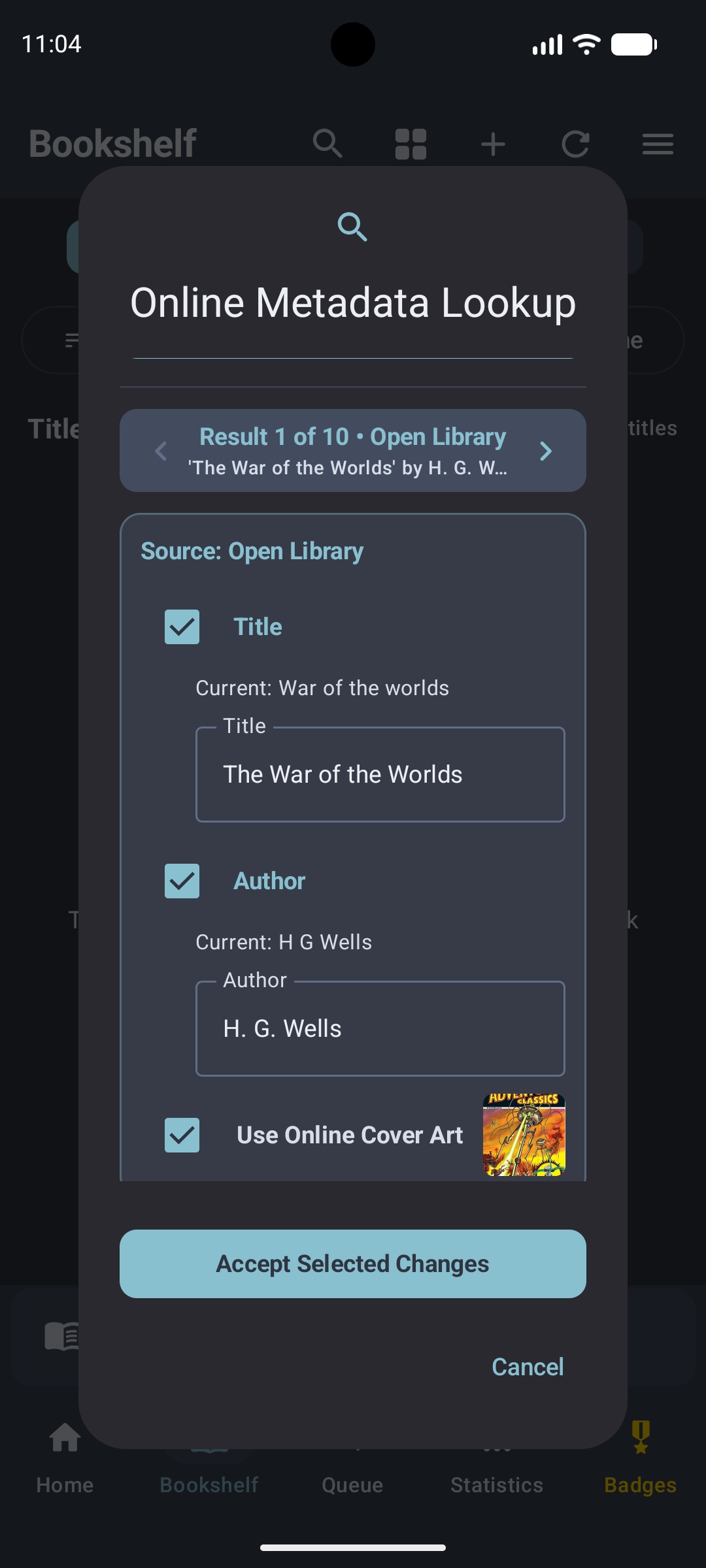
.epubor.pdffile. - Online Metadata & Cover Art Lookup: Tap Online Metadata or Search Cover Art to query public APIs (iTunes, Google Books, OpenLibrary) to automatically fetch high-res artwork and complete missing metadata.
5. Viewing Listening Statistics
Tap Statistics (📊 Statistics) on the bottom navigation bar to open your personal listening analytics.
Analytics Dashboard & Features
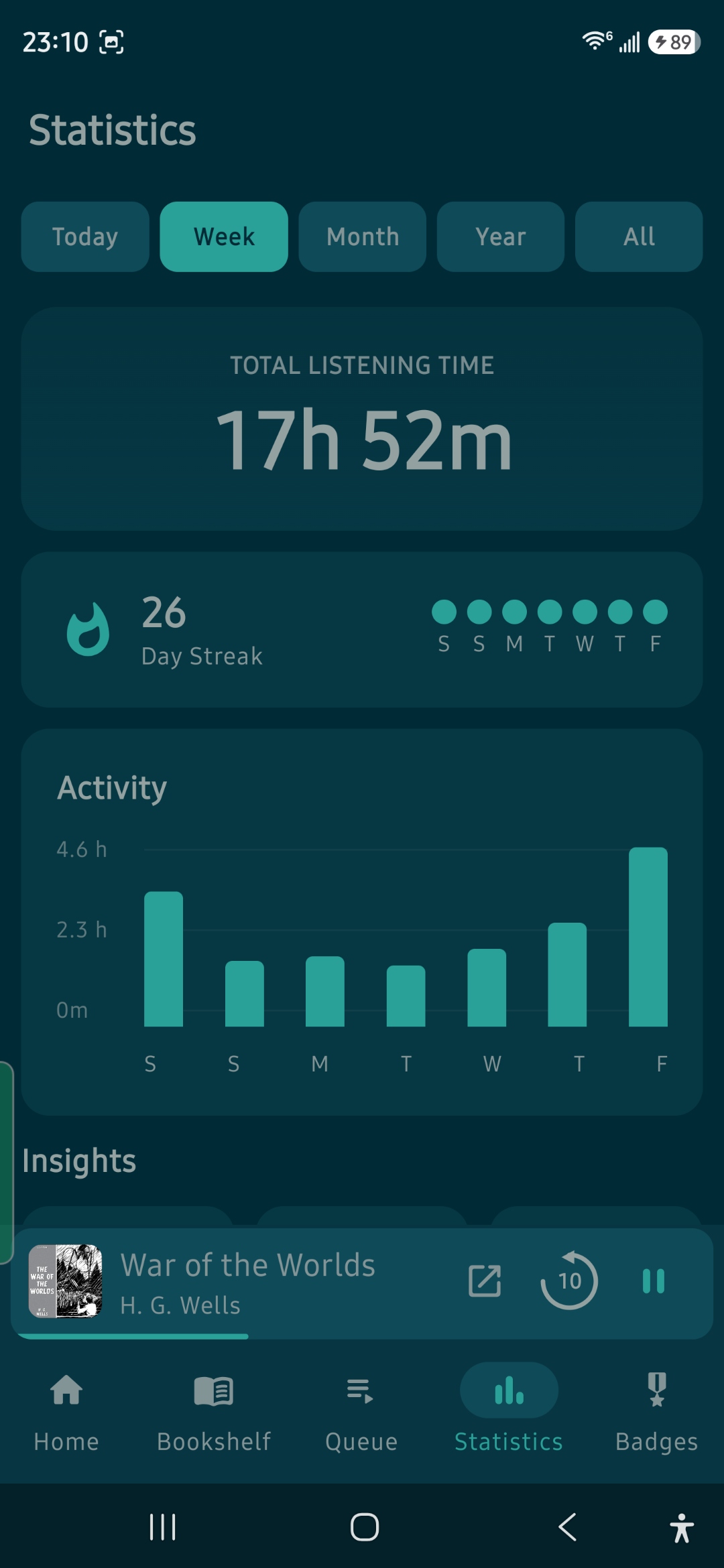
- Time Intervals: View statistics for Today, Week, Month, Year, or All Time.
- Key Metrics: Total Listening Time, Day Streak (🔥), Active Days, Daily Average, and Best Listening Day.
- Monthly Activity Heatmap: Interactive visual grid showing every day you listened. Tap any day to view exact listening duration.
- Listening Habits Analysis:
- Favorite Day: Identifies which day of the week you listen most.
- Favorite Time Buckets: Categorizes activity into Morning (5A–11A), Day (11A–5P), Evening (5P–11P), and Nightowl (11P–5A).
Important Listening History Retention: Daily listening totals and streaks are recorded separately from individual books in the local database. Removing or updating a book is designed to preserve those totals, but software errors, device loss, or database damage can still cause data loss. Keep independent backups of important app data.
6. Hall of Achievements Overview
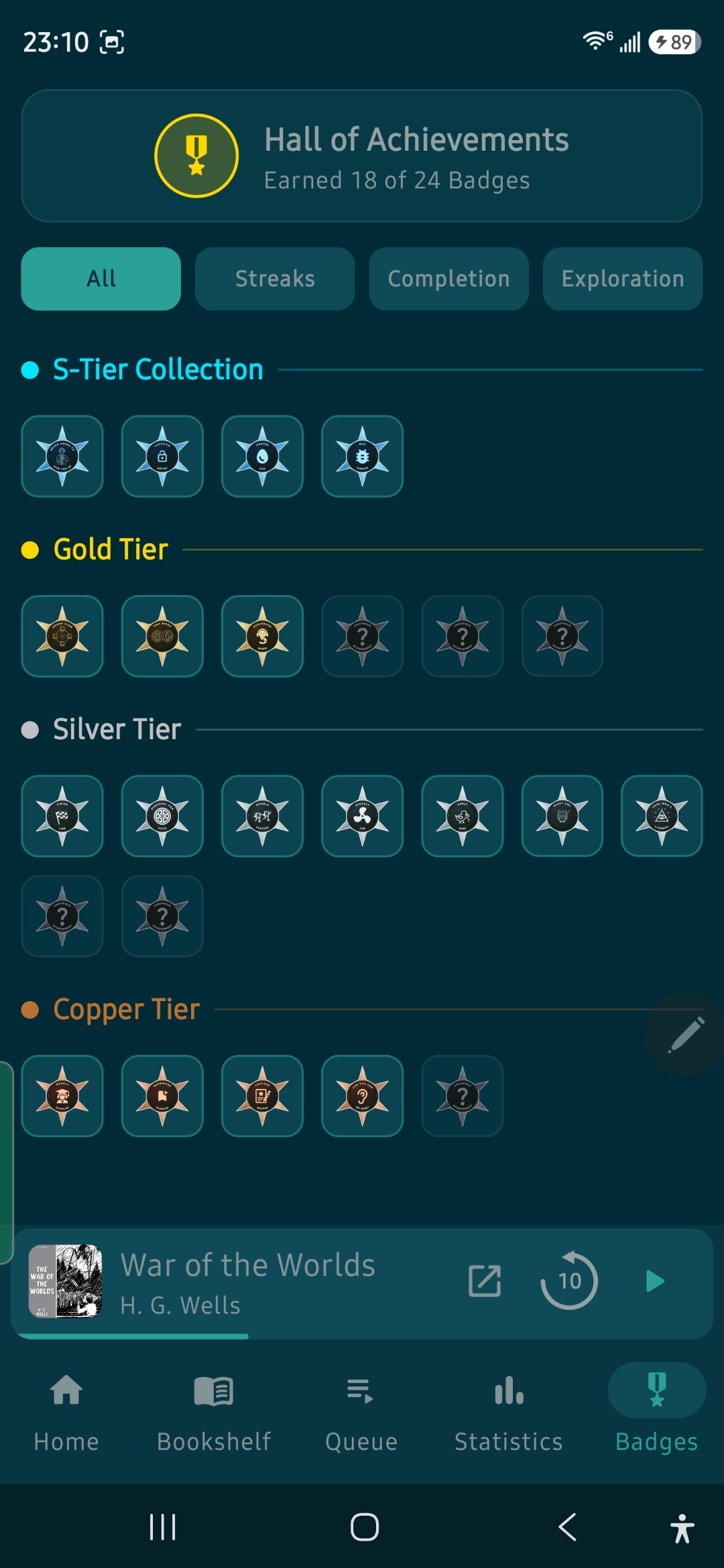
Tap Badges (🏆 Badges) on the bottom navigation bar to open the Hall of Achievements.
Earn badges across four prestigious tier levels as you listen, build streaks, and curate your library:
Achievement Categories
- Streaks: Awarded for maintaining daily listening streaks and monthly listening targets.
- Completion: Awarded for completing audiobooks, finishing series, and building your finished catalog.
- Exploration: Awarded for engaging with app features like companion e-books, bookmarks, reviews, and session logs.
7. Product Differentiation
This section provides insight into Audiobook Theater's product philosophy.
Strategic Market Differentiation
- 100% DRM-Free & Local Ownership: Unlike cloud-subscription platforms, Audiobook Theater gives users complete ownership over their content. Users can import any DRM-free audiobooks they own and listen anywhere, anytime, without subscription fees or DRM locks.
- Immersive Companion E-Book Experience: Dual audio-text synchronization transforms listening into an active, multi-sensory reading experience.
- On-Device AI Assistant: Privacy-first local AI acts as a personal listening companion that catches users up when life distracts them, without cloud tracking.
Device Spectrum & Compatibility Architecture
- Broad Android Support: Audiobook Theater is optimized to run smoothly on older devices (tested and verified on hardware as old as a Samsung Note 8) for core audio playback, library management, and server streaming.
- Adaptive AI Scaling: Core audio playback operates independently of AI models. On devices lacking hardware NPU/GPU acceleration for local AI, non-AI core features remain 100% functional.
Streaming & Server Reliability Strategy
- Offline Freedom First: Audiobookshelf and Jellyfin server integrations emphasize the Download Title workflow, ensuring users can download files locally for reliable offline playback when traveling or offline.
- Server Sync: Remote progress synchronization and library state polling are continuously refined during active testing.
Monetization, Support & Policy Trust
- 100% Free & Open Community Model: Audiobook Theater is completely free of ads, paywalls, or data monetization. Development is supported through optional voluntary donations (Venmo / Cash App). Developer support is provided on a best-effort basis.
- Transparent Data Handling: Local use does not require your name, email address, or account registration. Optional diagnostics may process technical information and app-installation identifiers. Voluntary support correspondence is handled separately. See the app privacy policy.
8. Help & Frequently Asked Questions
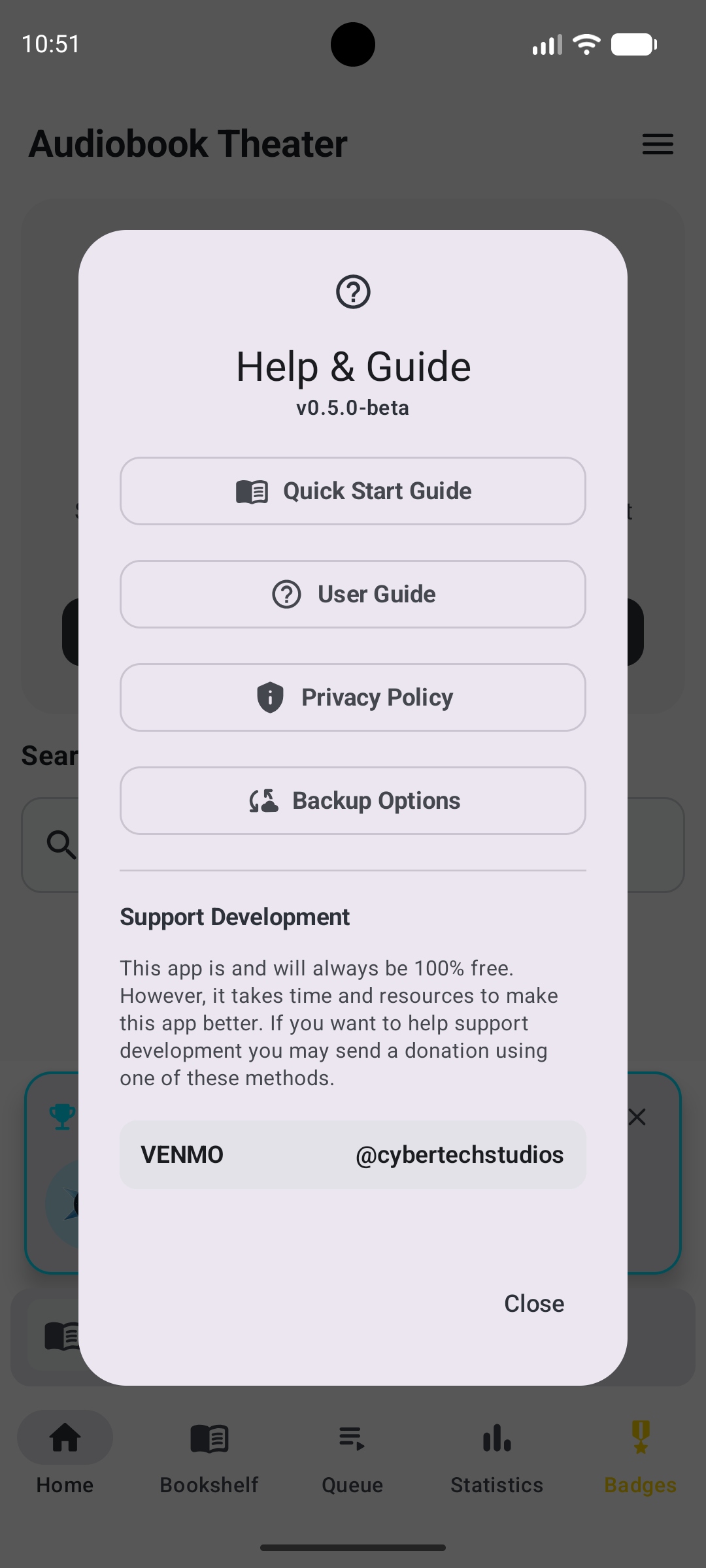
Open Help & Guide from the main menu for the Quick Start Guide, User Guide, Privacy Policy, and Backup Options.
Q1: What inspired you to create Audiobook Theater?
: We became passionate about reading while staying active, so audiobooks and immersive reading quickly took over our lives! As a family split between iOS and Android, I initially looked to support my wife on iOS and found an app called Bloox. Bloox inspired this project because, well, nothing on Android compared to Bloox. I wanted to give Android users an opportunity to enjoy an app with rich, AI-assisted features. For anyone looking for a great iOS option, we strongly recommend checking out Bloox!
Q2: How does Google Cloud Backup protect my data?
: Audiobook Theater integrates with Android's system Google Cloud Backup (Settings ⚙️ -> Backup & Data Protection -> Backup Options).
When enabled, your listening history, statistics, bookmarks, star ratings, review notes, and app settings are automatically backed up to your Google Play account.
Security & Encryption:
- End-to-End Encryption (E2EE): Backup data is encrypted using end-to-end encryption whenever Android lock-screen security (PIN, pattern, or password) is enabled on your device. Google and third parties cannot read your backup.
- Media Privacy Guarantee: Actual audiobook media files and e-books are NEVER uploaded or stored in Google Cloud Backup. Only lightweight database metadata is saved.
Q3: Can I download audiobooks for offline listening from Audiobookshelf or Jellyfin servers?
: Yes! Connect your server under Settings ⚙️ -> Library Settings -> Streaming Servers. On your Bookshelf, tap the More Options (⋮) menu on any server title and select Download Title. The full audiobook will download to your local device directory for 100% offline listening without an internet connection.
Q4: Does editing metadata in the app change the files on my phone storage?
: Editing book details (Title, Author, Series, Narrator) inside the app updates Audiobook Theater's local database for fast display. It does not alter your raw audio file tags or rename files on disk.
If you have manually placed loose audiobooks or companion e-books in the root of your library folder and want to structure them into subfolders on disk, tap Bookshelf Menu (⋮) -> Organize Local Books. This tool uses your local database metadata to physically move files within your root ABT folder into clean Author / [Series] / Title subfolders. Make sure your book metadata in the app is correct before running this tool!
Q5: Will Local AI features work on my device?
: Local AI features require an initial one-time model download (~40–80 MB) and depend on your device's hardware processor capabilities. While core audiobook playback works seamlessly on older devices (e.g., Samsung Note 8), local AI features require modern device hardware. You can test status and enable AI under Settings ⚙️ -> Local AI Features -> Configure AI Features.
Q6: How do I manage or delete AI transcripts?
: Transcripts and session summaries are stored in your local database. To clear all saved AI transcripts, go to Settings ⚙️ -> Local AI Features -> Configure AI Features, scroll to the bottom, and tap Delete All AI Transcripts (🗑️). This deletes transcript text without affecting your bookmarks, star ratings, or listening stats.
Q7: Will deleting or purging an audiobook reset my daily streaks or total listening time?
: Deleting, purging, or re-importing a book is designed to preserve daily streaks and accumulated listening time because daily activity is summarized separately in the local database. This is not a guarantee against device failure, database damage, or software bugs. Keep independent backups of important app data.
Q8: How do companion e-books work with audiobooks?
: Place an .epub, .pdf, or .txt file inside the audiobook's folder, or tap Add Companion E-Book on the Book Details screen. When playing the audiobook, tap Read Along (📖) on the player toolbar to view hands-free auto-scrolling e-book text synchronized with live audio playback.
Synchronization & Manual Adjustment: Audiobook Theater synchronizes audio playback with e-book text using audio progress percentages, chapter markers, and on-device text indexing (or optional AI Read Along alignment). Because audio pacing and publisher e-book formatting can vary, synchronization may occasionally be slightly off. If the text drifts ahead or behind, simply manually scroll the e-book to your current reading location and tap Resume Following (or Align AI to Current View) to re-center auto-scrolling seamlessly.
Q9: How are my server passwords and credentials protected, and why do I need to re-enter passwords when upgrading devices?
: Server credentials (passwords, API keys, and login tokens) are stored outside the main database using hardware-backed AES-256-GCM encryption through the Android KeyStore. Master keys are generated and locked inside your device's physical security chip (Trusted Execution Environment / TEE) and never leave the hardware.
Upgrading to a New Device: Because encryption keys are tied to the physical hardware security chip of your specific phone, transferring your data or restoring a backup onto a new device will require you to re-enter your server passwords. This strict hardware isolation guarantees that your server passwords can never be extracted or compromised across devices.
Q10: Which folder should I select when using Bulk Import?
: Select a dedicated root folder containing your audiobook collection (e.g. a /Storage/Audiobooks folder). Avoid selecting general system folders such as "Downloads" or the root phone directory, because Bulk Import recursively scans for all audio files and may identify unwanted music, voice notes, or podcasts that you didn't intend to import.
Q11: Is iPhone / iOS supported?
: Audiobook Theater is architected using Kotlin Multiplatform to support iOS in the future. However, developing, building, and maintaining an iOS application presents unique technical challenges, and Android remains our primary focus at this time. We currently lack the physical hardware infrastructure (such as a Mac build machine or dedicated iOS test devices) required to reliably build, test, and maintain an iOS version.
Recommended iOS App: If you are looking for an outstanding audiobook app on iOS right now, please see Q1 above for our recommended option: Bloox!
If you are passionate about seeing a native Audiobook Theater iOS release and are interested in supporting development by donating test devices or a Mac that'll support a modern build environment, please reach out to us at support@cybertechstudios.dev!
Need a hand?
Report an issue, suggest a feature, or ask a question. Include your app version, Android version, and device model when relevant. Please do not send passwords or sensitive personal information.
Contact support ↑ Back to top